See supplier product import in action
From the supplier's feed to products in your store: import, categories, prices and stock on the program screens.
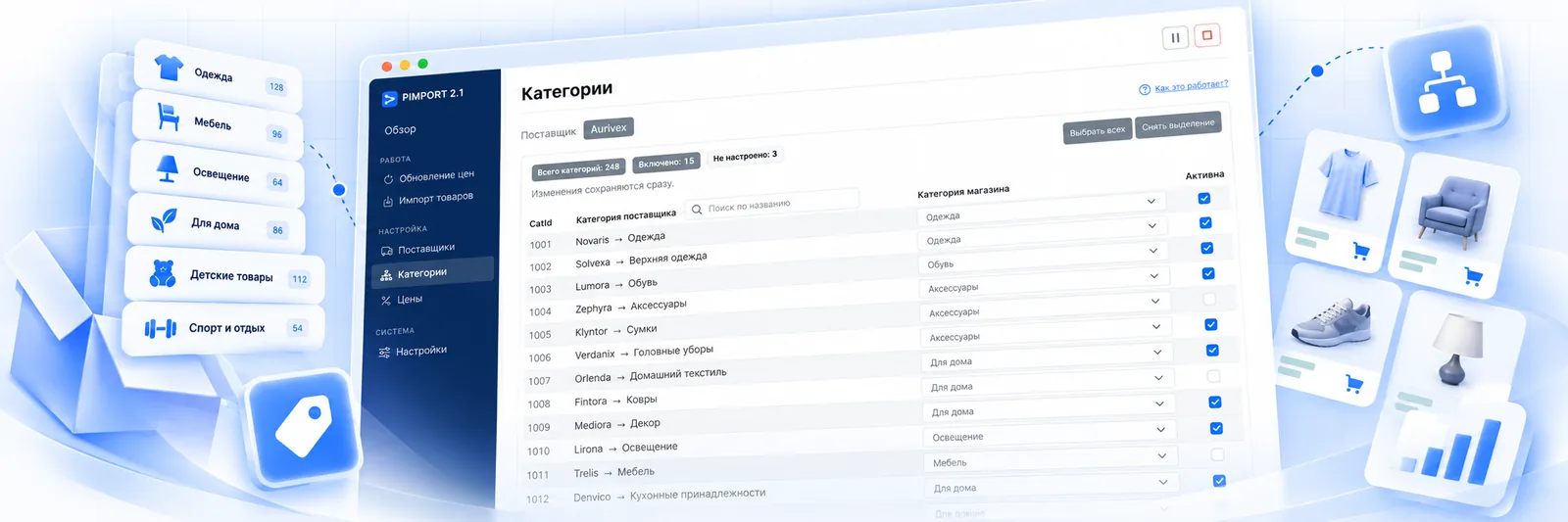
Choose where the products land
Map supplier categories onto your store categories. The groups you need are selected for import: anything unmapped or switched off does not reach the store — which is why a feed of 40 categories can be taken in three.
 Enlarge screenshot
Tap to look at the screen in detail.
Import and updates on screen
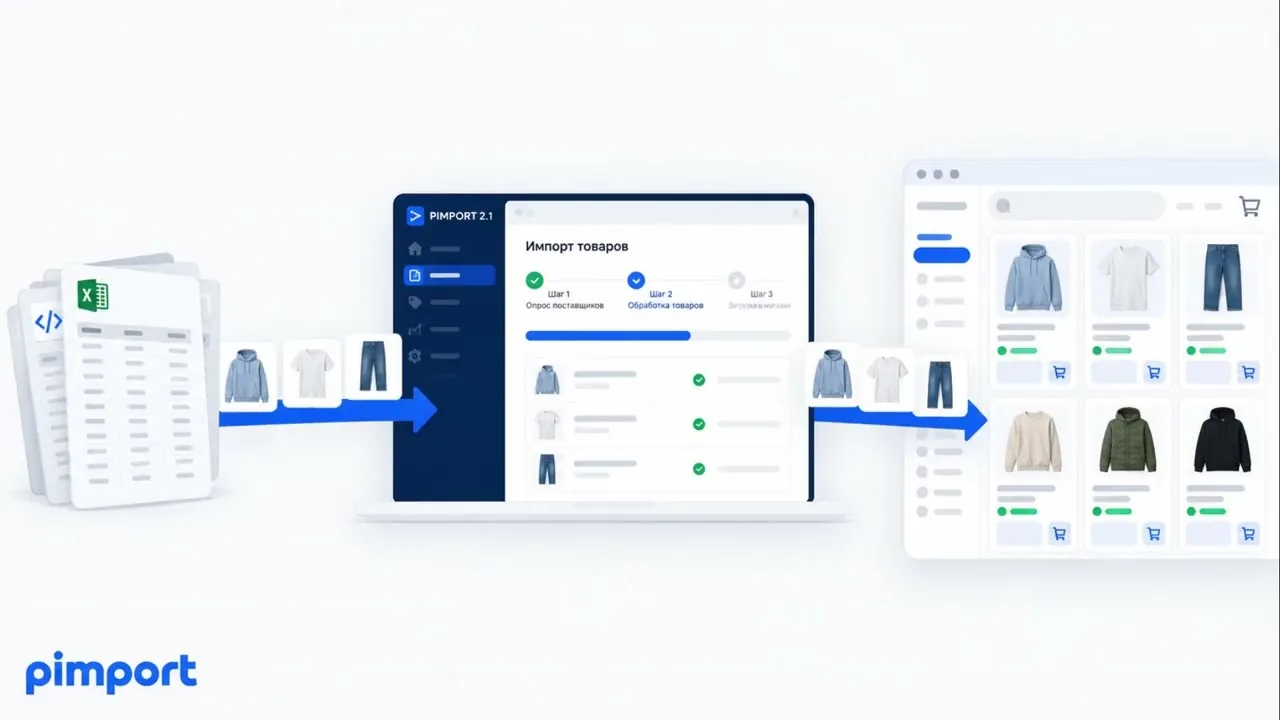
See a source being connected, products imported and the catalogue updated. Recorded on WooCommerce; on the other platforms the steps are the same and only the admin looks different.
Where this runs
This screen is the same for any store: the supplier tree on the left, yours on the right. Only the place the result gets written differs.

OpenCart
2.x · 3.x Connection terms →
WooCommerce
WordPress 5.6+ · WooCommerce 3.6+ Connection terms →
Shop-Script
8…12 · Webasyst Connection terms →
Joomla JoomShopping
JoomShopping Connection terms →Key screens
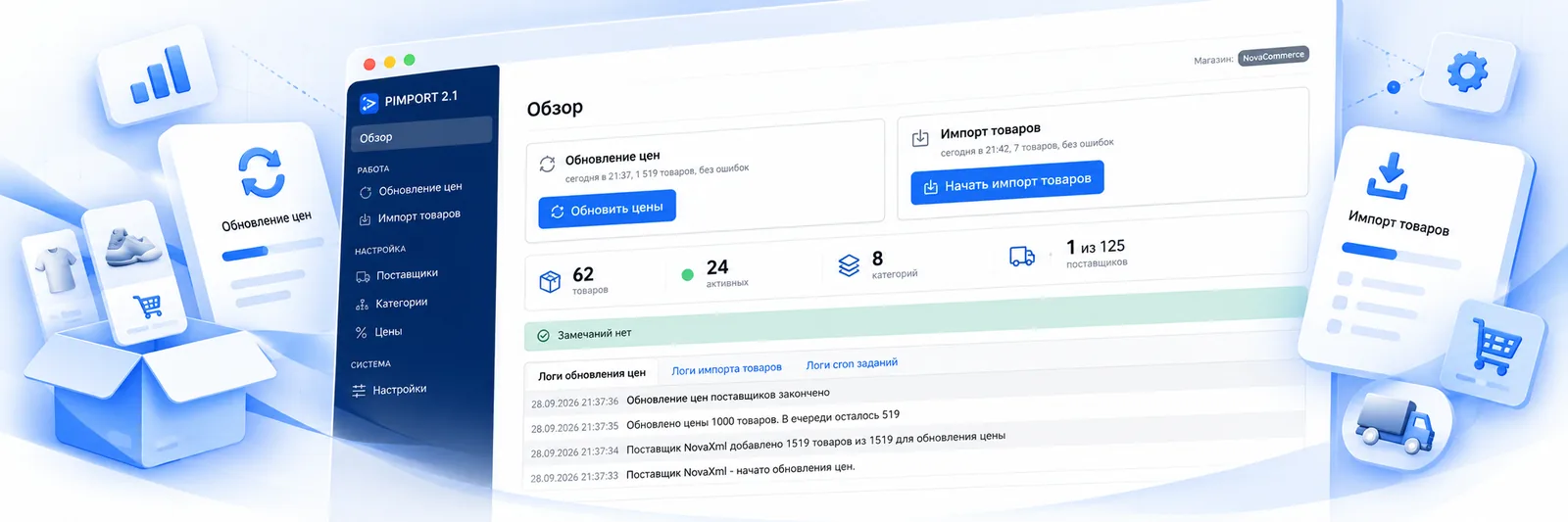
Overview
Shows the state of the catalogue, the latest update and anything that needs attention.
 Enlarge screenshot
Tap to look at the screen in detail.
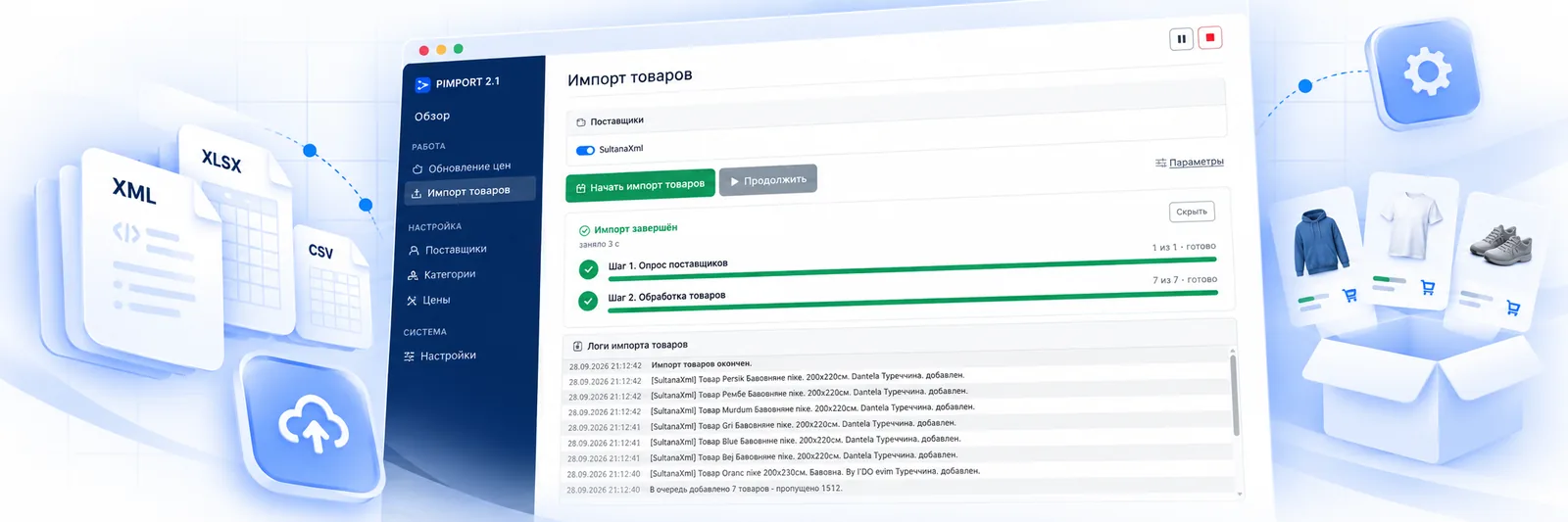
Import
The log shows the products added and skipped, with the reason for skipping.
 Enlarge screenshot
Tap to look at the screen in detail.
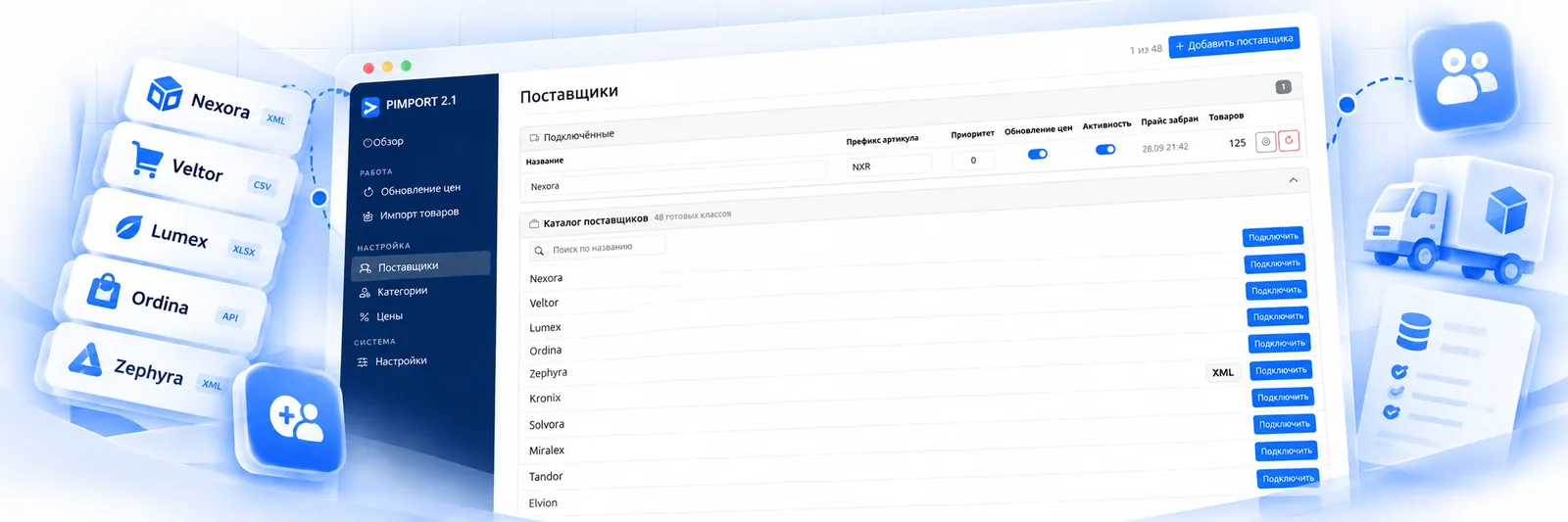
Suppliers
Feed sources, their priorities and the settings of each supplier.
 Enlarge screenshot
Tap to look at the screen in detail.
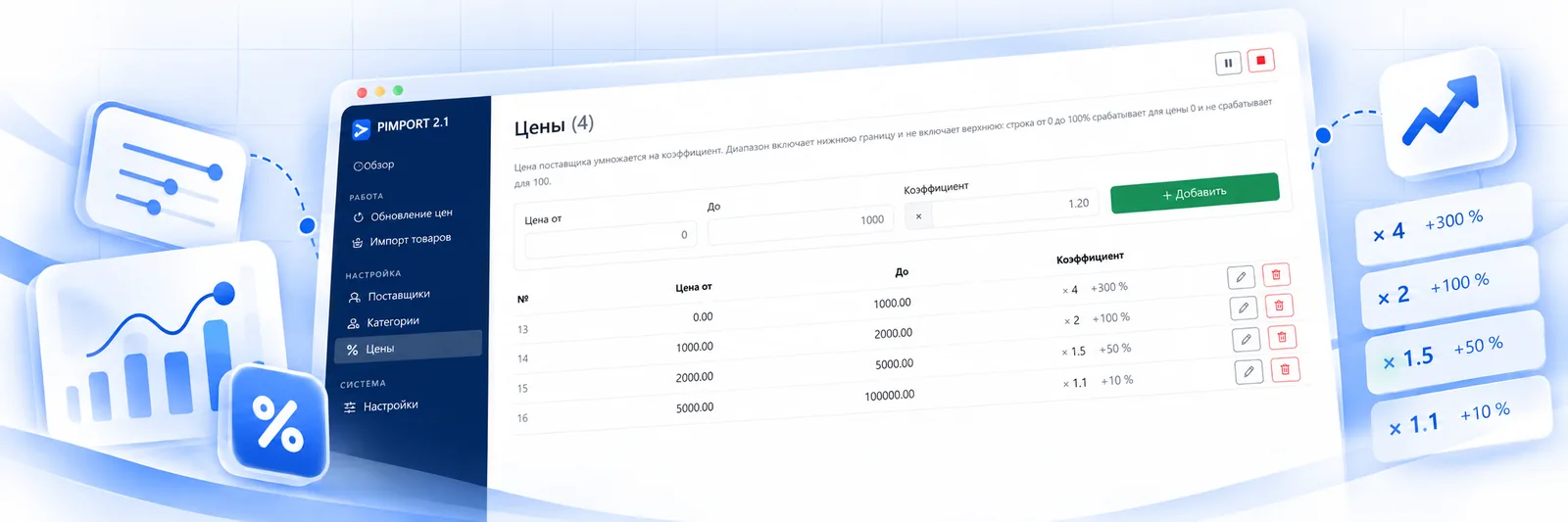
Pricing rules
Markup for the price ranges, categories and suppliers you need.
 Enlarge screenshot
Tap to look at the screen in detail.
The other screens
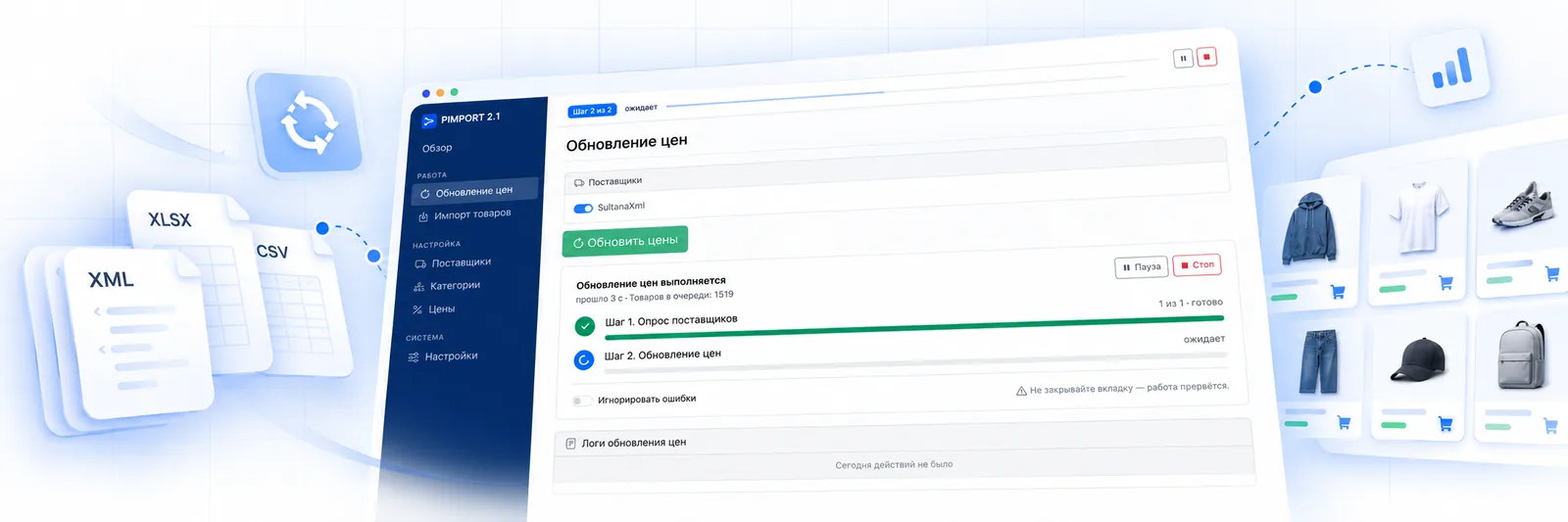
Price update
The update queue and what is happening right now: the program walks the products already created and changes price and stock.
 Enlarge screenshot
Tap to look at the screen in detail.
The best example is your own products
Send a link to your feed. We will show 20 products the way the program reads them, and quote the connection cost.