Having a supplier feed is not the same as having it in your store. Column names, categories, SKUs and price formats rarely match what the store expects. And once the first upload is done, the next job begins: keeping prices and availability current without losing the edits you made to product pages by hand. This guide walks through the ways to import supplier products, how to pick one, and what to check before you hand updates over to a schedule.
Three tasks tend to get mixed up:
- initial upload — the supplier’s products are not in the store yet and have to be created;
- regular updates — the products exist, prices and availability change;
- catalogue migration between platforms — a one-off job with its own rules, only touched on here.
Sending products to ad platforms and passing orders to the supplier are separate processes and not covered here.
What exactly needs importing
Before choosing a tool, answer four questions. They matter more than the number of products:
- New products or only changes? Building a catalogue from scratch and changing prices every two hours are very different workloads.
- Where does the data come from? An XML link, an Excel file by e-mail, a wholesale account behind a login, or only the supplier’s website.
- Is there a catalogue already? If products were added by hand, the import has to recognise them rather than create a second copy next to them.
- What stays under your control? Titles, descriptions, photos, categories, individual prices — whatever the import must not overwrite.
Why a feed cannot always be loaded as is
A supplier builds the feed around their warehouse, not your storefront. Something has to translate between the two:
- fields are named differently: “SKU” at one supplier, “Code” at another, an unlabelled column at a third;
- the identifier is what recognises a product on the next update. If it is missing or changes, a repeat upload creates duplicates;
- categories differ: the supplier has “Kitchen / Appliances”, you have “Home appliances → Kettles”;
- photos come as links, sometimes on a slow server, sometimes not at all;
- prices may be wholesale, in another currency, with or without tax;
- variants — sizes and colours — come as separate rows from some suppliers and as a list in one row from others.
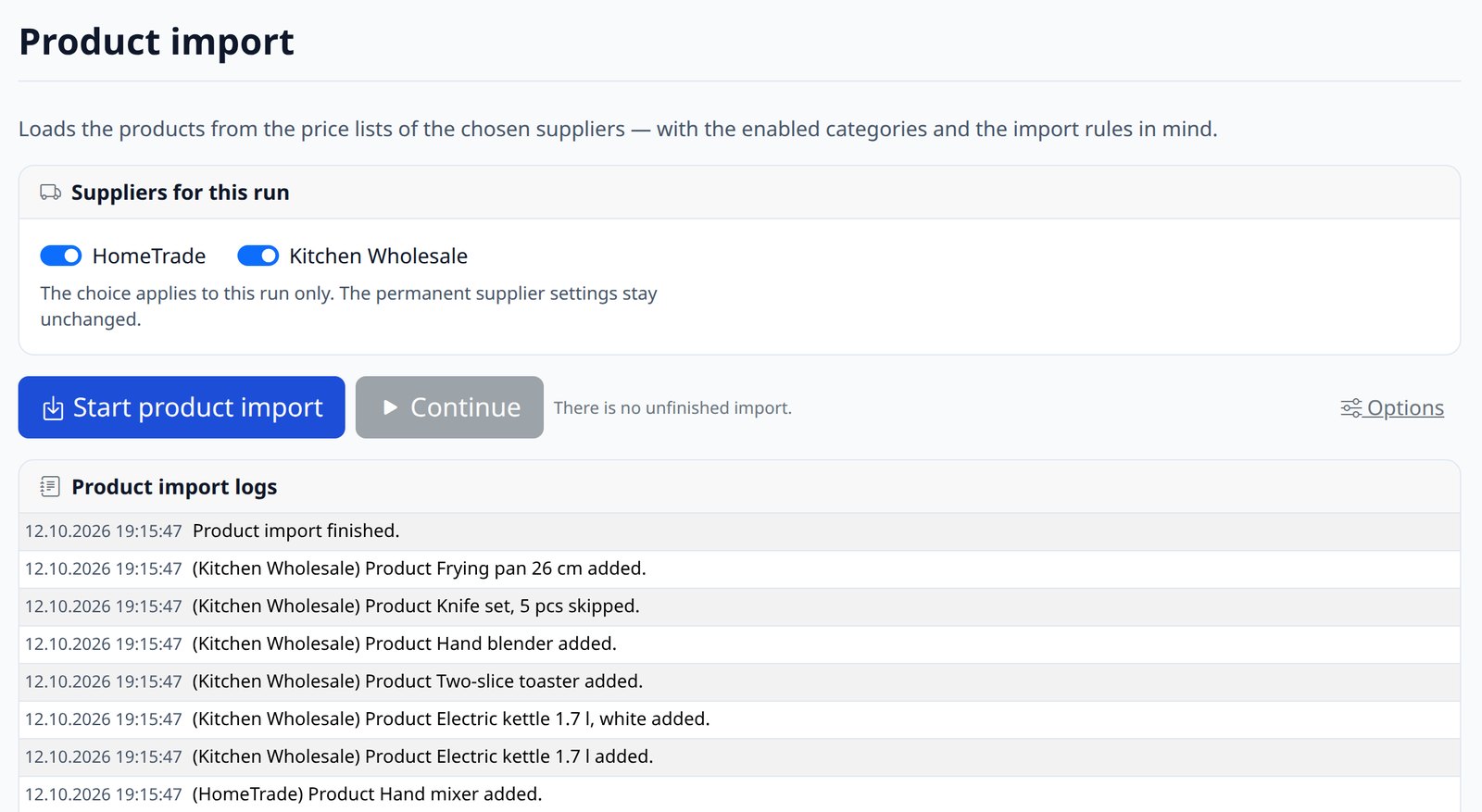
A worked example: three rows from a supplier feed and what they become in the store. The data is made up; the rules are typical — a supplier prefix in the SKU, a mapped category, a 40% markup and rounding to whole units.
| Code | Title | Supplier category | Price, $ | Available | Photos |
|---|---|---|---|---|---|
| A-1042 | Electric kettle 1.7 l | Kitchen / Appliances | 18.40 | yes | 2 |
| A-1043 | Electric kettle 1.7 l, white | Kitchen / Appliances | 18.40 | no | 1 |
| B-207 | Knife set, 5 pcs | Kitchen / Cookware | 22.00 | yes | — |
| Store SKU | Store category | Price, $ | On the storefront |
|---|---|---|---|
| sup-A-1042 | Home appliances → Kettles | 26 | in stock |
| sup-A-1043 | Home appliances → Kettles | 26 | out of stock |
| — | — | — | skipped: no photos |
The third row did not make it into the store because it was set up that way: products without photos are skipped. That is not an error but the owner’s decision — and a good import marks such a row in its log instead of dropping it silently.
What to ask the supplier for
The cheapest way to make an import simpler is to ask for the right data. Ask the supplier:
- whether there is a feed behind a link — XML, YML or CSV that they refresh themselves. That beats a file by e-mail: nothing has to be forwarded;
- how often it is refreshed — that sets how often it makes sense to fetch prices;
- whether it has a permanent product code, a description, photos, a brand and a category;
- what currency the prices are in and whether they are retail or wholesale.
YML is an XML dialect for product catalogues — the same format Prom and Rozetka use — and has nothing to do with YAML. How the formats differ in practice and what to do when a supplier only has Excel is covered in XML, YML, CSV or Excel: which feed to ask your supplier for. If there is no feed at all, see collecting data from the supplier’s site.
Ways to import
Entering by hand. A fair option for dozens of products that rarely change. Beyond that it runs into time and into mistakes nobody is there to catch.
The platform’s built-in import. Many platforms have one. WooCommerce, for example, has a built-in CSV importer that can update existing products as well as create new ones (WooCommerce documentation). The catch is elsewhere: the file has to follow the platform’s schema, and a supplier feed almost never does. Someone has to convert it — every time.
A platform extension. An import module inside the store. Handy if there is a ready one for your platform and your supplier’s format. Check that it supports your platform version, the fields you need and scheduled runs, and who keeps it updated.
An online service. A quick start and ready-made connections. Find out which formats and processing rules it supports, what the plan limits are and what happens to the import when the subscription ends.
A program on your own hosting. Runs next to the store and writes into it through a platform driver. Suits you when you need feed-processing rules and regular updates and want the data to stay with you. The downside: it has to be installed and connected.
A custom script or API integration. For an unusual catalogue structure or business logic. The most freedom, and it needs development, testing and maintenance.
How to choose
| Approach | When to consider it | What to find out first |
|---|---|---|
| Entering by hand | Small volume, rare changes | How much time it takes and who checks for mistakes |
| Built-in import | You have a file already in the platform’s schema | File schema, product types, rules for repeat imports |
| Platform extension | There is one for your platform and source | Platform version, supported fields, scheduling, module updates |
| Online service | Its connections and data-hosting terms fit you | Formats, processing rules, plan limits, termination terms |
| Program on your hosting | You need feed processing and regular updates | Store connection, source, hosting resources, rules |
| Script or API integration | Unusual structure and business logic | Available interfaces, cost of development and maintenance |
The number of products does not decide on its own. What matters more is how many suppliers you have, what formats their data comes in, how often it changes, how far your catalogue differs from their structure and who will maintain the solution a year from now. A closer comparison of the options for regular updates is in Five ways to keep supplier prices and stock up to date.
How setup goes
Whatever the tool, the order is the same:
- Get the source — a link or a file — and make sure it opens and gets refreshed.
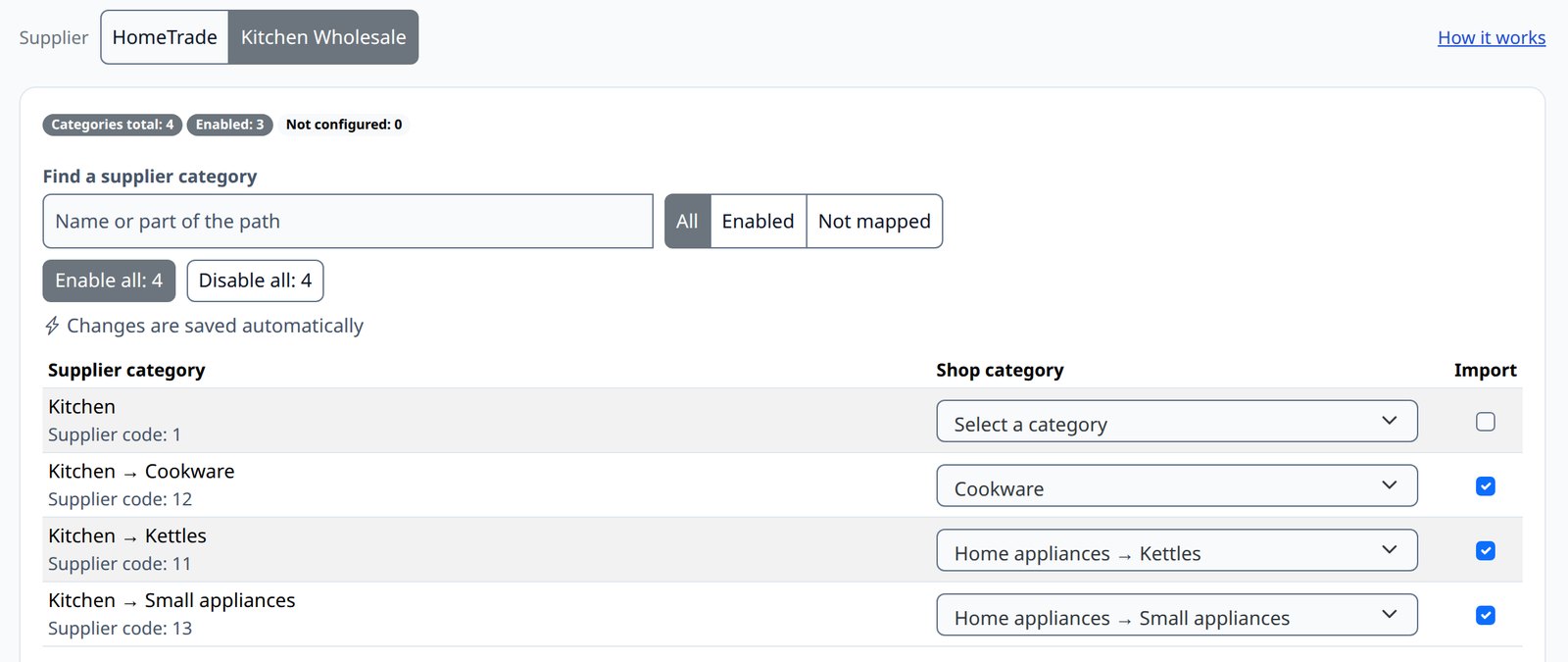
- Map fields and categories — which column is the code, the price, the availability; which supplier category goes into which of yours. Start with two or three categories, not the whole feed.
- Set the rules — markup, rounding, which products to leave out, which fields not to overwrite.
- Test on a small set — a dozen products you know well.
- Run the first import.
- Check a repeat update — see the next section.
How the final price is worked out and in what order the rules apply is covered in How a product price is calculated.
What to check after the import
Open a few product pages and compare them with the feed:
- the SKU or other identifier the product will be recognised by;
- the price after all the rules;
- availability: “in stock” and “out of stock” should match the feed. Whether the exact quantity is carried over depends on the connection and is checked separately;
- the category and the photos.
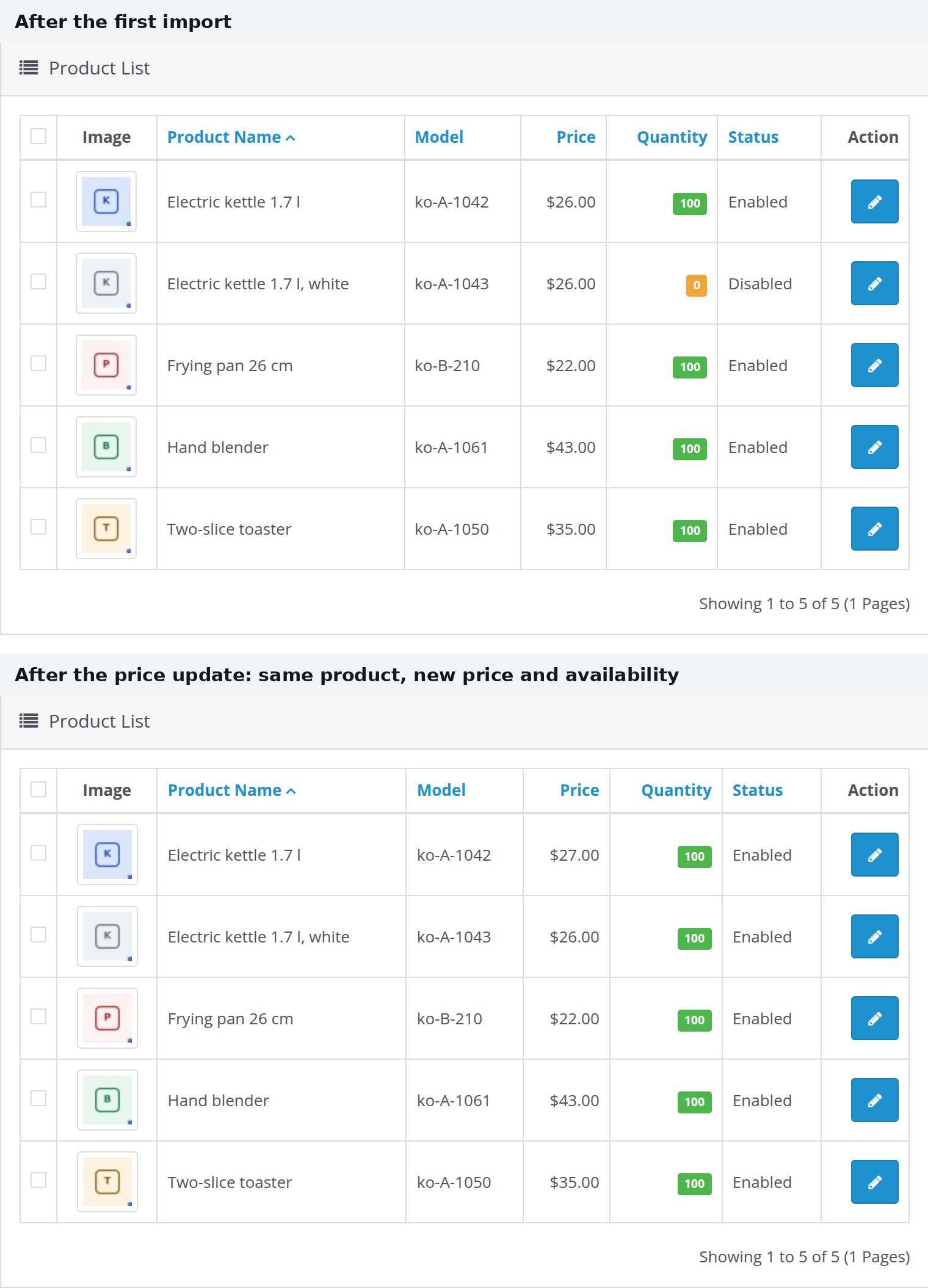
Then the check people most often skip. Wait for the supplier to change a price or availability (or change it in a test copy of the feed) and run the update again. The same product page should change, rather than a second one appearing. Fields you edited by hand should stay yours. Why duplicates appear here and how to avoid them is in Repeat imports: avoiding duplicates and keeping your edits.
With several suppliers, add one more question: what happens when two of them carry the same product. That is covered in Several suppliers in one store.
When PIMPORT fits
PIMPORT is a program on the store owner’s hosting. It runs next to the store rather than inside it and does two jobs, kept apart in its menu:
- Import products — reads the feed and creates what is not in the store yet;
- Update prices — walks the products already created and changes price and availability. This is light work and goes on a schedule.
A product is recognised by its SKU: the supplier prefix plus the code from their feed. A product that leaves the feed is taken off the storefront rather than deleted — when it is back in the feed, it is back on the shelf at the same URL. Processing is set up with rules: markup, rounding, replacements, product filters, protecting fields from being overwritten.
It fits if your suppliers send XML, YML, CSV or Excel, you need processing rules and scheduled updates, and you want the program and the data on your own hosting. Compatibility is checked for a specific platform and case: ready connections exist for OpenCart, WooCommerce and Shop-Script, the full list is on the Platforms page. For a custom-built store the connection is developed separately — see connecting a custom store.
We install the program and connect the supplier. Which categories to take and at what markup to sell is your call: the program carries out your rules.
How to get help
Send three things: your store address, a link to the feed or the file itself, and what you want — to build the catalogue, to update prices, or both. We will tell you whether your case fits, how the connection would work and what it costs.
Pre-launch checklist
- The source opens from a link and the supplier refreshes it.
- Every product has a permanent code.
- Categories are mapped; nothing extra is switched on.
- Price rules are checked on a few products.
- A repeat update changes the same product page instead of creating a new one.
- Manual edits on product pages are not overwritten.
- It is clear what happens to a product that has left the feed.