The first import went fine and the products are in place. A week later the supplier refreshes the feed, you run the import again — and there are two identical kettles in the catalogue. Or there are no duplicates, but the title you rewrote for search is back to “KETTLE EL. 1.7L WHT”. Both problems have one cause: the import does not know which product page counts as “the same one”, or which fields are yours.
How an import recognises a product
Every row in the feed needs a key that finds it in the store. There are three common options:
- the supplier’s code, written into the SKU or a separate product field. The most reliable, as long as the supplier does not change it;
- the manufacturer part number or barcode. Handy with several suppliers, but not every product has one and it is sometimes filled in wrongly;
- the title. The worst: the supplier fixes a typo or adds a colour, and it is a “new” product.
With several suppliers a supplier prefix is added to the code: code “1042” may exist at two of them, but “sup1-1042” and “sup2-1042” cannot be confused.
Where duplicates come from
- There is no key, or it is unstable. The supplier renumbered the catalogue, switched code systems, or exports a row number instead of a code.
- The import is set to “always create”. Built-in importers often distinguish “create” from “update” — check which mode is on and which field it matches on.
- The catalogue was filled by hand before. Products created before the import have no supplier code, so the import does not recognise them.
- The prefix was changed, or the field the code goes into. Old products are no longer found and new ones appear next to them.
- Variants. A supplier sends a T-shirt as five rows, one per size, while in the store it is one product with a size option. If the import does not know that, you get five pages.
Which fields to overwrite
It helps to split the fields of a product page into two kinds:
| Field | Usually whose | On update |
|---|---|---|
| Price | The supplier’s plus your rules | Recalculated every time |
| Availability | The supplier’s | Updated every time |
| Title | Often yours after editing | Protect it if you edited it |
| Description | Often yours | Protect it if you rewrote it |
| Photos | Depends on the store | Protect them if you replaced them |
| Category | Yours | Leave alone if you moved the product by hand |
The rule is simple: what changes at the supplier every day gets updated; what you have put work into gets protected. Ideally protection can be set not only for the whole supplier but also for a category or a single product.
A price you agreed separately is a special case. It is not protected from updates but set as an exception to the markup rules. How price rules work is covered in How a product price is calculated.
What to do with products that left the feed
Deleting them is a bad idea: the page has a URL that may already be in search results, reviews and links. Products often come back a week later. It is safer to hide such a product from the storefront and bring it back when it reappears in the feed. Check what your tool does: deletes it, marks it out of stock or does nothing — the last option leaves something on the storefront that cannot be bought.
How to check before going on a schedule
- Import a small set of products.
- Edit the title and description of a couple of them by hand.
- Change the price and availability in a test copy of the feed (or wait for the supplier to change them).
- Run the update again.
- Check: the number of products has not grown, price and availability are new, your edits are still there.
- Remove one product from the test feed and see what happens to it.
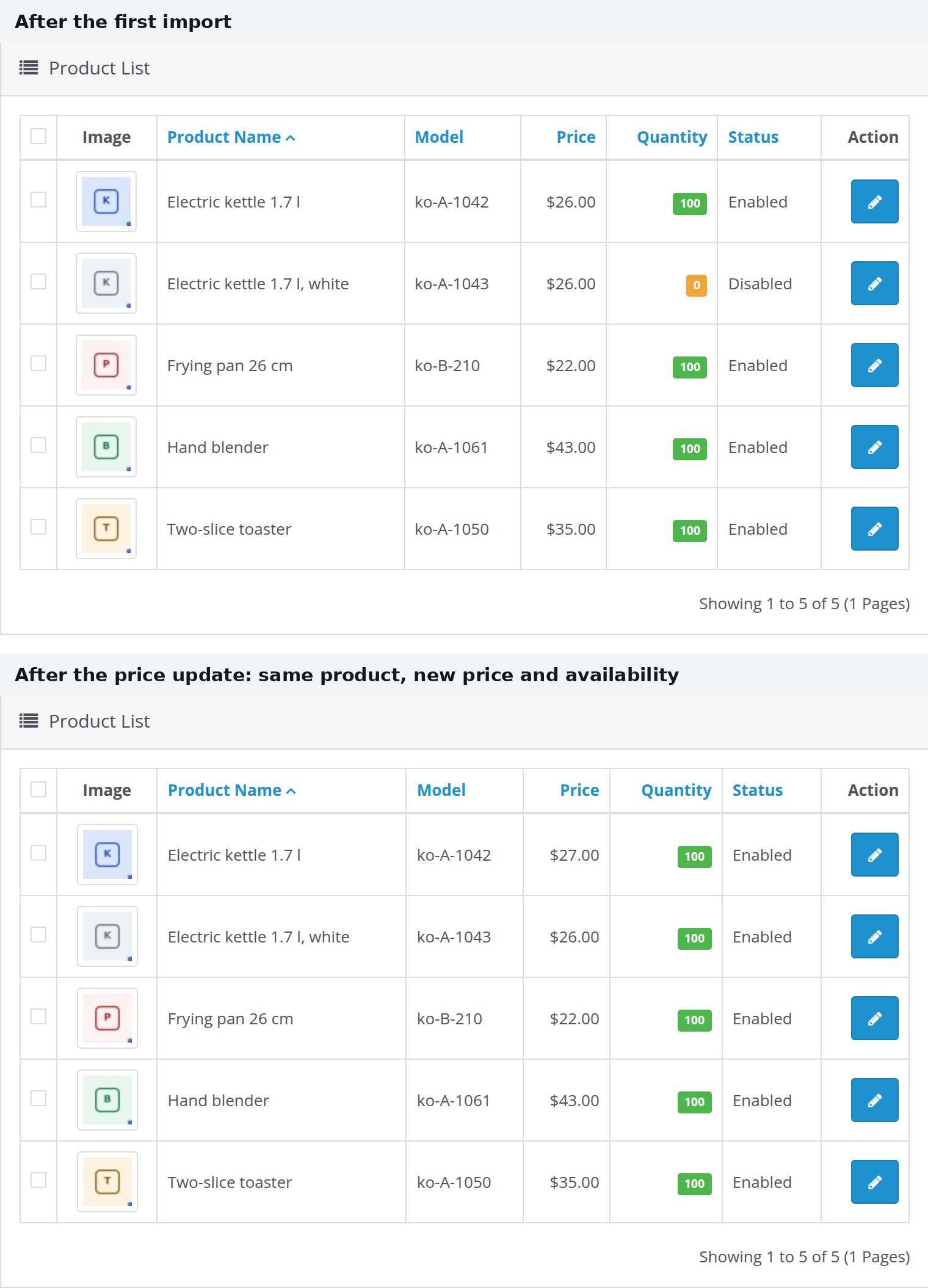
How PIMPORT handles it
A product is recognised by its SKU: the supplier prefix plus the product code from the feed. That is why a working supplier’s prefix is never changed — the old products would no longer be found.
The two jobs are kept apart. Import products creates what the store does not have yet; a product that already exists is skipped by default rather than created a second time. The data of previously imported products can be overwritten, but only explicitly — with the “Update the data of previously imported products” option on a manual run; the scheduled import never does that. Update prices changes only price and availability and leaves titles, descriptions and photos alone.
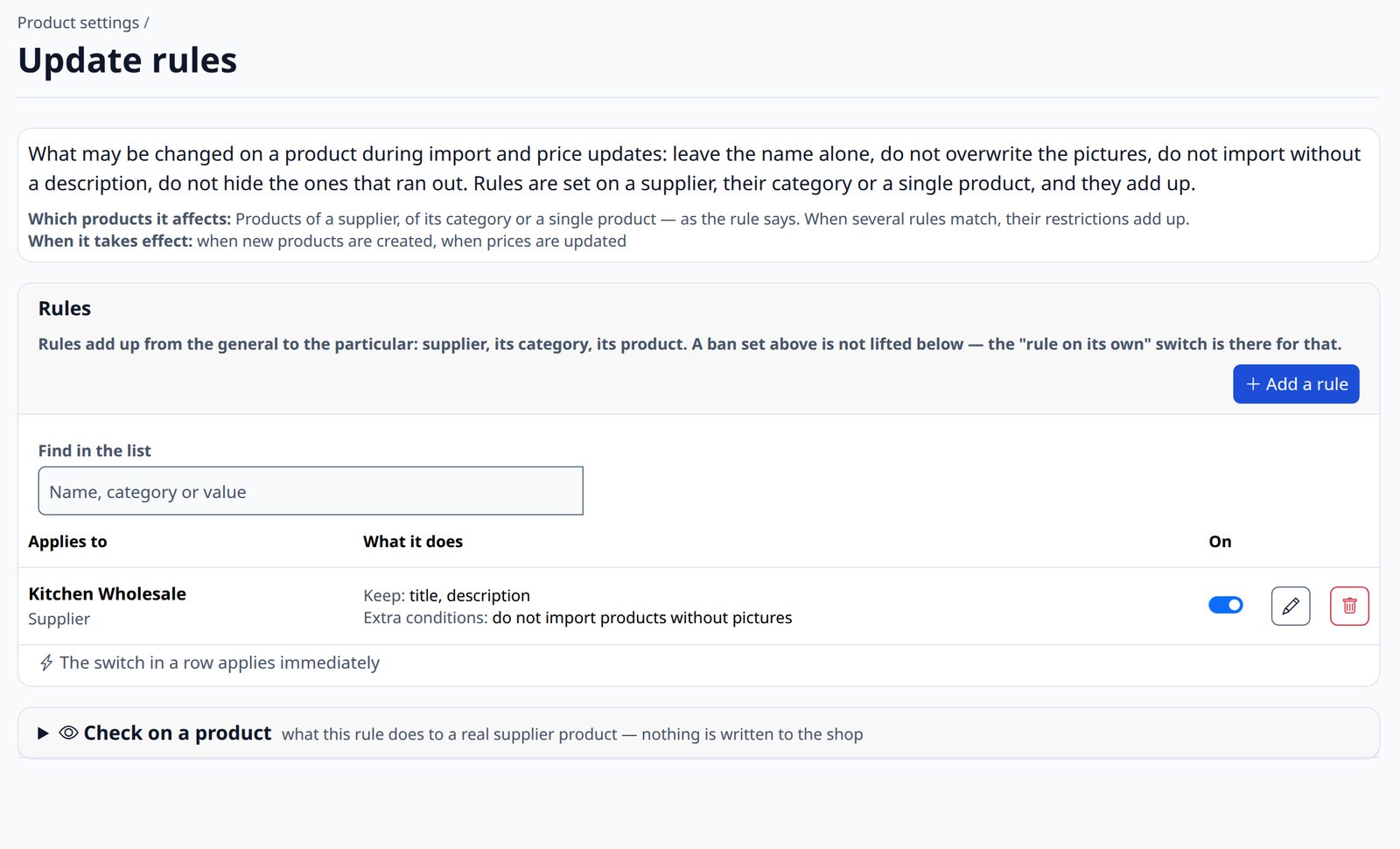
If you do need overwriting but some fields must stay as they are, the Update rules plugin protects them: title, description, photos, category, attributes. A rule is set for a supplier, one of their categories or a single product, and the narrower rule refines the general one. Price is not protected this way — for agreed prices there is Fixed price.
A product that leaves the feed is taken off the storefront but stays in the database — back in the feed, back on the shelf. Details are in the documentation: Products that left the feed.
If the catalogue was already filled by hand, the program will not recognise those products by itself — they have no supplier code. Linking them to the feed is a separate one-off job, and its size depends on what your product pages hold: manufacturer part numbers, barcodes or only titles. We estimate it against your catalogue.
If you are still choosing how to import, start with How to import supplier products into your online store.